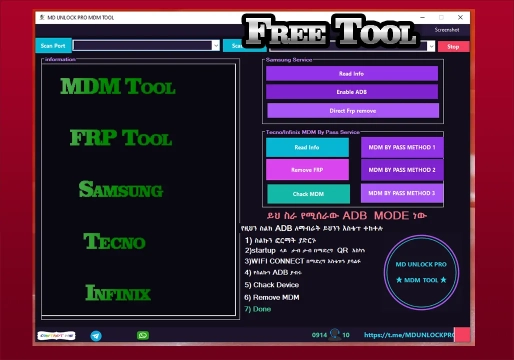
MD UNLOCK PRO TOOL v1.0 FRP AND MDM?
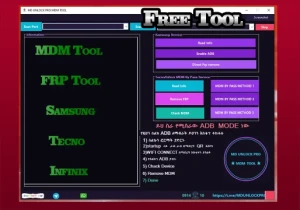
The MD UNLOCK PRO TOOL v1.0 is a tool developed for the Windows environment, designed to assist technicians with software maintenance procedures on Android smartphones. Its intuitive interface centralizes essential USB communication resources, device detection, reading of critical information, and service options related to FRP protection and MDM management.
The program stands out for offering two main service areas: one dedicated specifically to Samsung devices and another focused on devices from the Tecno and Infinix brands. It also provides robust functions to check communication ports, detect devices via ADB, and monitor in real time the messages generated during technical procedures.
This tool is ideal for software maintenance professionals looking to bring together different diagnostic and service options in a single efficient interface.
What is the tool for?
MD UNLOCK PRO TOOL consolidates resources that streamline various stages of technical service, from the initial identification of the device to the execution of specific procedures. Among its main applications are:
- Reading information: Detailed consultation of the data provided by the connected device.
- Device detection: Accurate identification of connections available via ADB or specific communication ports.
- Samsung services: Access to options for reading data, enabling debugging, and removing FRP.
- Tecno and Infinix services: Reading functions, MDM verification, FRP operations, and MDM service methods.
- Procedure monitoring: Clear visualization of messages, connection status, and operation results.
It is important to emphasize that the availability and success of each operation depend directly on the device model, the Firmware version, the installed security level, and the connection mode used.
Main functions of MD UNLOCK PRO TOOL
1. Scan Port
The Scan Port function allows you to search for and select communication ports available on the computer. This resource is essential during procedures that require a specific service connection, depending on the mode in which the smartphone is connected and the drivers installed on Windows.
2. Scan ADB
The Scan ADB button checks for the presence of devices accessible through the Android Debug Bridge interface. For detection to work correctly, the device must be in a compatible state, with USB Debugging enabled and the necessary authorizations granted. This function helps confirm that the phone is recognized before starting any service.
3. Samsung Read Info
In the Samsung service area, the Read Info button reads the device information. It is a useful resource for the initial identification of the device, allowing you to check whether the detected model matches the equipment that will be serviced.
4. Samsung Enable ADB
The Enable ADB option in the Samsung section is intended for operations related to enabling ADB communication on compatible devices. Note that its availability does not guarantee operation on all models or lock states, depending on the device's access conditions.
5. Direct FRP Remove Samsung
The Direct FRP Remove function is intended for procedures related to factory reset protection. FRP is an anti-theft mechanism that may require Google account validation after a restore. This operation should only be used on devices you own or received with the owner's authorization.
6. Tecno/Infinix Read Info
The section for Tecno and Infinix devices also features the Read Info function, assisting with consulting device information before selecting a procedure. Confirming the correct identification prevents starting operations in the wrong section.
7. Remove FRP
The Remove FRP button in the Tecno/Infinix area performs the removal of factory protection. Support varies depending on the model and firmware. In cases where the owner has lost access to the Google account, official recovery should be considered as a priority.
8. Check MDM
The Check MDM function verifies the device's management status. MDM (Mobile Device Management) is technology used by organizations to manage devices and apply policies. The check is useful for identifying whether the phone is subject to such restrictions.
9. MDM Bypass Method 1, 2, and 3
The interface provides three distinct MDM procedure options. These buttons represent different methods for compatible scenarios. The choice depends on the model, system version, and security level. On corporate devices, any change must follow the authorized process.
10. Information Panel, Stop, and Screenshot
The program offers essential support resources:
- Information Panel: Displays device information, connection messages, and operation logs.
- Stop: Requests the immediate interruption of an ongoing procedure.
- Screenshot: Captures the tool's screen for technical documentation.
How to install MD UNLOCK PRO TOOL v1.0
The tool is distributed as a compressed file. Follow these steps for preparation:
- Extract the contents using a compatible program, such as WinRAR or 7-Zip.
- Open the extracted folder and locate the main executable.
- Keep the DATA folder next to the executable, strictly preserving the original file structure.
- Run the program with administrator privileges when necessary.
- Install the appropriate USB drivers for the device and the type of communication used.
Since the tool is portable, it does not depend on a traditional installation wizard. Do not move or delete auxiliary files from the package.
Watch the video to find out how to download and install
How to use MD UNLOCK PRO TOOL
Step 1 — Prepare the smartphone
Identify the manufacturer and exact model. Check the connection conditions, the Android version, and the purpose of the service. Back up user data whenever you have access to the files.
Step 2 — Connect to the computer
Use a USB cable capable of transmitting data and connect the phone directly to the computer. Verify that the corresponding drivers are installed. For ADB-based procedures, make sure USB debugging is enabled.
Step 3 — Detect the device
Open MD UNLOCK PRO and use the appropriate detection option:
- Scan ADB: To search for devices available through the ADB interface.
- Scan Port: To locate and select the necessary communication port.
If there is no detection, check the cable, the USB port, the drivers, and the connection mode.
Step 4 — Consult the information
Select the section corresponding to the manufacturer and use Read Info. Confirm that the program recognized the expected device before proceeding.
Step 5 — Select the appropriate function
In the Samsung section, use options such as Read Info, Enable ADB, and Direct FRP Remove. In the Tecno/Infinix section, use Read Info, Remove FRP, Check MDM, and the MDM methods. Choose only one operation compatible with the equipment and with the owner's authorization.
Step 6 — Monitor the result
Observe the information panel during the operation. When finished, check the completion message and test the device's functions. Simply closing the step does not confirm that the problem has been resolved.
Compatibility and requirements
MD UNLOCK PRO presents sections for Samsung, Tecno, and Infinix, but this does not guarantee universal compatibility. Consult the table below to understand the basic requirements:
| Item | Requirement or information |
|---|---|
| Computer system | Windows |
| Permissions | Administrator access may be required |
| Connection | USB cable with data transmission |
| Drivers | USB, ADB, or service drivers appropriate for the device |
| ADB | USB debugging and authorizations, when required |
| Program files | Keep the executable and the DATA folder in the original structure |
| Supported brands | Samsung, Tecno, and Infinix |
| Compatibility by model | Depends on the device, firmware, and security level |
Limitations and important precautions
- Specific compatibility: Functions may vary between models and firmware versions. The existence of an option does not guarantee universal operation.
- FRP protection: Anti-theft mechanism. Prioritize official account recovery procedures in case of lost access.
- MDM management: Do not change restrictions on corporate devices without authorization from the responsible administrator.
- Executable security: Analyze the package before running it and keep your antivirus active.
- Data preservation: Some interventions may cause data loss. Always back up whenever possible.
Frequently asked questions
Does MD UNLOCK PRO TOOL v1.0 work on any Android phone?
There is no indication of universal compatibility. The interface presents options for Samsung, Tecno, and Infinix, but operation depends on the model, firmware, and selected operation.
Does the program need to be installed?
The package is described as portable. Generally, the executable is opened from the extracted folder, keeping the auxiliary files in the original structure.
What is the purpose of Scan ADB?
Scan ADB searches for devices available through the Android Debug Bridge. Detection depends on the phone's configuration, the drivers, and the necessary authorizations.
What is the difference between FRP and MDM?
FRP protects the device after a factory reset, requiring validation of the previously associated Google account. MDM allows an organization to manage devices and apply usage policies. They are different mechanisms and require their own procedures.
Do the three MDM methods work on all Tecno and Infinix devices?
No. The interface offers three distinct options, but this does not guarantee that they will work on all devices or security versions. Compatibility must be considered individually.
⚠️ Warning!
Before using the Program, you need to temporarily disable your Antivirus because it may flag the file as a potential threat, but it is a false positive.
I test every program I share here before posting it, however I cannot guarantee 100% that they are completely safe since I am not the creator of the programs.
I strongly recommend that you create a restore point on your computer before installing any program, so if you notice that the program is not safe, you can simply revert the restore point to the previous state.
Important: if you do not trust it, do not use it and look for other options.
📥 Download Information
- Scroll down to the Download section.
- Check the box I agree to the terms of use
- Then click on Reveal links
- Wait 5 seconds
- Use any of the 2 links
- ⚠️Warning: The download file is compressed with the password “mixdow.com”.
🔐 Site Download Section
To unlock the links, check the box below and click the button:
To get started, make sure you have the basic drivers installed:
DOWNLOAD REQUIRED DRIVERS HEREAttention: Some New FRP Tools use a "bypass" method that requires a special driver filter called LibUSB.
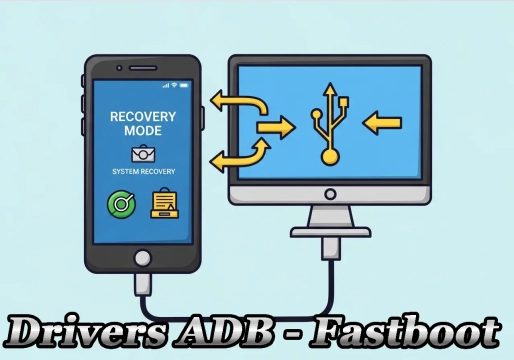
DOWNLOAD LIBUSB HEREFor Unlock Methods that require ADB or Fastboot Mode:
DOWNLOAD ADB AND FASTBOOT DRIVERS HERERequired to put the Qualcomm device into Emergency Download (EDL) mode.:
Download Qualcomm HS-USB QDLoader 9008 DriverI do not endorse or encourage the unlocking of stolen/blocked cell phones.
Anyone who uses these posts for any illegal purpose will be solely responsible for their activity.
Legal Notice:
The content of this Website, including any information about software, downloads, and third-party links, is provided for informational purposes only. The author of this Website is not responsible for any damage, directly or indirectly, caused by the download, installation, or use of any software mentioned on this website.
Disclaimer:
By accessing and using this Website, you agree to hold the author harmless from any liability for:
Hardware or software damage:
Including, but not limited to, viruses, worms, trojans, or other malicious code that may infect your system.
Data loss:
Copyright violations:
Downloading and using software without the proper licenses may result in copyright violations.
Illegal acts:
Misuse of software may be considered an illegal act and result in legal consequences.