Fastboot: The Complete Guide to Android Maintenance and Modification
Anyone who works with Android smartphone maintenance or enjoys modifying the operating system has certainly heard of Fastboot. It is one of the most important features available on Android devices, allowing the computer to communicate directly with the device's bootloader before the operating system is even loaded.
Fastboot is widely used by technicians, developers, and advanced users to install firmwares, unlock the bootloader, recover faulty devices, and execute various maintenance commands.
In this article, you will understand what Fastboot is, how it works, when it should be used, its advantages, and the precautions needed during its use. 🔧
What is Fastboot?
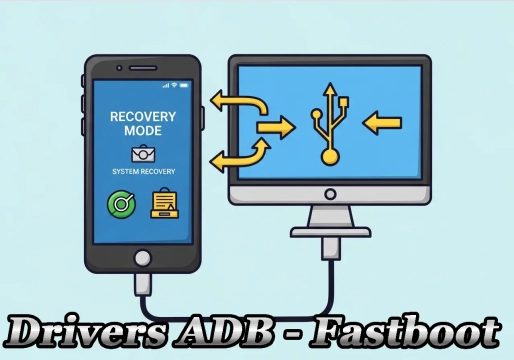
Fastboot is a communication protocol present on most Android devices that allows commands to be sent directly to the device's bootloader through a computer using a USB connection.
When the smartphone boots into Fastboot Mode, Android is not loaded. Instead, the bootloader remains active waiting for commands sent by the computer through the Fastboot tool, which is part of the Android SDK Platform Tools package.
Unlike Recovery mode, which has its own menu on the device, Fastboot depends on commands executed on the computer.
Main Fastboot functions
- 🔓 Unlock or lock the bootloader
- 📦 Install boot images
- 💾 Write system partitions
- 🛠️ Install custom Recovery
- 🗑️ Erase specific partitions
- 🔄 Reboot the device into different modes
- 📋 Query device information
By offering low-level access to internal storage, Fastboot is an extremely powerful tool.
How does Fastboot work?
Its operation is relatively simple. First, the user boots the smartphone into Fastboot Mode, usually using a combination of physical buttons or an ADB command.
Operating flow
- The device remains waiting for commands.
- The computer recognizes the device through the USB driver.
- The user executes commands using the
fastboot.exeprogram. - The bootloader interprets these commands and performs the requested operation.
Most used commands
| Command | Function |
|---|---|
fastboot devices |
Lists connected devices. |
fastboot reboot |
Reboots the device normally. |
fastboot flashing unlock |
Requests bootloader unlock (when permitted by the manufacturer). |
fastboot flash boot boot.img |
Writes a new image to the Boot partition. |
fastboot erase userdata |
Completely erases user data. |
Each manufacturer may add limitations or specific commands to Fastboot.
When is Fastboot used?
Fastboot is used in various technical situations, especially when Android cannot boot normally or when internal system components need to be modified.
Most common uses
- Firmware installation — Allows official images to be written to specific partitions of the device.
- Bootloader Unlocking — Required to install custom ROMs, custom Recoveries, and perform advanced modifications.
- Custom Recovery installation — Tools such as TWRP are usually installed using Fastboot commands.
- Manual updates — Some manufacturers provide updates in a format compatible with Fastboot.
- Device recovery — Can be used to restore corrupted partitions and recover devices that do not boot properly.
- Android development — Developers use Fastboot to test kernels, boot images, and different system versions.
What are the advantages of Fastboot?
Fastboot offers several benefits for technicians and advanced users:
- ✅ Low-level access: allows essential system components to be changed before Android even starts.
- ⚡ High speed: write operations are usually quite fast.
- 🏛️ Official tool: part of the Android SDK Platform Tools, developed by Google.
- 📱 Broad compatibility: present on most Android devices, although some manufacturers use their own modes.
- 🩹 Device recovery: can restore devices experiencing bootloop or boot failures.
- 🎯 Advanced control: allows writing only specific partitions without reinstalling the entire system.
What are the risks of Fastboot?
Although it is an extremely useful tool, improper use can cause serious problems. ⚠️
- 💾 Data loss: some commands, such as unlocking the bootloader or wiping the data partition, erase all information stored on the device.
- ❌ Incorrect installation: writing an incompatible image can prevent the device from working correctly.
- 🔁 Bootloop: errors during partition writing can leave the device stuck on the boot screen.
- 📜 Warranty loss: some manufacturers consider bootloader unlocking a modification that may affect the product warranty.
- 🔒 Manufacturer locks: not all devices allow all Fastboot commands. In some cases, official authorization must be requested to unlock the bootloader.
Are Fastboot and ADB the same thing?
No. Although they are part of the same tool package (Android SDK Platform Tools), they have different functions.
| Feature | ADB | Fastboot |
|---|---|---|
| Android state | Works with Android running | Works before Android starts |
| Requirement | Requires USB Debugging enabled | Works directly on the bootloader |
| Main function | Allows commands to be executed in the operating system | Allows device partitions to be modified |
| Typical use | Maintenance during Android use | Advanced maintenance and recovery |
The two tools usually work together during technical procedures.
Conclusion
Fastboot is one of the most important tools in the Android ecosystem for maintenance, recovery, and customization of devices. It allows direct communication with the bootloader, making it possible to go from unlocking the device to installing system images and recovering faulty devices.
Despite being a very powerful feature, its use requires attention and technical knowledge. Executing incorrect commands or installing incompatible files can cause data loss or prevent the device from working.
For specialized technicians and advanced users, mastering Fastboot is practically indispensable for performing maintenance, development, and recovery procedures on Android smartphones.
Frequently Asked Questions (FAQ)
1. Does Fastboot work on any Android smartphone?
No. Most Android devices support Fastboot, but some manufacturers (such as Huawei, in more recent models) have removed or restricted bootloader access, limiting the full use of the tool.
2. Does unlocking the bootloader with Fastboot erase my data?
Yes. For security reasons, unlocking the bootloader automatically performs a complete format of the data partition, erasing photos, apps, messages, and settings. Back up before executing the command.
3. Do I need root to use Fastboot?
No. Fastboot operates on the bootloader, a level below the Android system. Therefore, it works regardless of whether the device is rooted or not.
4. What is "fastbootd" mode?
It is a Fastboot mode executed in userspace, introduced in Android 10. It allows more flexible operations on dynamic partitions and is accessed from Recovery, unlike traditional Fastboot, which runs on the bootloader.
5. Is it safe to use Fastboot?
Yes, as long as you use correct commands and files compatible with your device model. Errors such as writing an image from another device can cause permanent bricking.
6. Can I use Fastboot on Windows, Linux, and macOS?
Yes. The Android SDK Platform Tools, which contains Fastboot, is cross-platform and works natively on all three operating systems.
7. Does Fastboot replace Recovery?
No. They are complementary tools. Fastboot operates before the system loads, while Recovery operates in its own environment within the device, with an interactive menu and features such as backup, wipe, and ZIP installation.
Discover the best Android tools Here