Here is the HTML translated into English while preserving the original code structure. ```html
BFT Tool: "Failed to Check for New Version" Error
When starting BFT Tool for Android device maintenance, encountering the message "Failed to check for a new version" is a common obstacle for technicians and enthusiasts. Although it seems like a critical installation error, in most cases it is a communication failure between the software and the update servers.
This guide has been updated for the network and security configurations of 2026, offering practical solutions to restore the tool's connectivity without the need for formatting or complex reinstallations.
🔍 What does this error mean?
The message indicates that the BFT Tool executable tried to establish an HTTPS connection with the official server to validate the license or fetch firmware updates, but the request was blocked or expired.
This does not necessarily mean that the file is corrupted. Windows, corporate firewalls, or internet providers may be intercepting the application's traffic, preventing the digital "handshake" required for verification.
⚠️ Main Causes of the Block
Before applying the fixes, identify which of these factors may be affecting your connection:
- 🌐 Network Instability: Data packets lost during the SSL handshake.
- 🛡️ Windows Firewall/Defender: Blocking outbound traffic for unknown applications.
- 🦠 Third-Party Antivirus: Preventive quarantine of "injection" or "flash" processes.
- 🔒 VPN or Proxy: Routing incompatible with BFT servers.
- 📅 Incorrect Date/Time: SSL certificates fail if the PC's clock is out of sync.
🛠️ Step-by-Step Solutions
Follow this logical diagnostic order. Start with the simple steps before changing deep system settings.
1. Basic Connectivity Validation
Check that the connection is not just "active" but stable.
- Open the Command Prompt (
cmd) and typeping 8.8.8.8. - If there is packet loss, restart your router.
- Avoid public or restrictive corporate networks; use a home connection or mobile hotspot for testing.
2. Running with Elevated Privileges
Windows may block the writing of update logs in protected folders.
- Right-click the BFT Tool icon.
- Select "Run as administrator".
- Wait for full initialization before attempting any operation.
3. Date and Time Adjustment (Critical for SSL)
If your PC's date is incorrect, the security certificates of BFT servers will be rejected.
- Go to Settings > Time and Language.
- Enable the "Set time automatically" option.
- Click "Sync now".
4. Firewall and Antivirus Allowlisting
Add the BFT Tool folder to your security system's exceptions.
- Windows Defender: Windows Security > Firewall > Allow an app through firewall > Add BFT Tool.
- Antivirus: Add the installation directory to the "Exclusions" or "Whitelist".
📊 Diagnostic Table: Symptom vs. Solution
Use this table to quickly identify the root of the problem based on the software's behavior.
| Observed Symptom | Probable Cause | Recommended Action |
|---|---|---|
| Immediate error on open (Offline) | Firewall or Antivirus blocking | Add exception in Firewall/AV |
| Error after 30 seconds (Timeout) | VPN, Proxy, or invalid DNS | Disable VPN / Change DNS to 8.8.8.8 |
| "Invalid Certificate" error | Incorrect Windows Date/Time | Sync system clock |
| Works on Hotspot, fails on Wi-Fi | Provider or Router filter | Restart Router / Check MAC Filtering |
| "Missing DLL" error (MSVCP) | Missing C++ Runtime | Install Microsoft Visual C++ Redistributable |
🛡️ Security and Repair Best Practices
When resolving the update error, remember that the integrity of the repair process is vital. Follow these guidelines to avoid permanent damage to Android devices:
- Prior Backup: Whenever possible, warn the customer about data loss.
- Battery: Keep the device above 30% charge before starting flashes.
- Quality Cables: Use original or certified USB cables to avoid disconnections during writing.
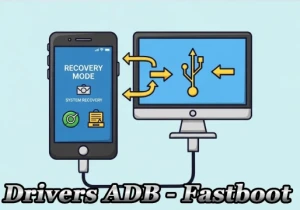
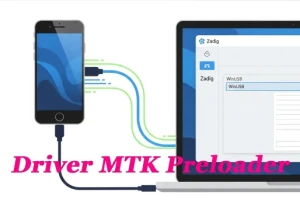
- Drivers: Verify that the USB drivers (MTP, ADB, Port Mode) are correctly installed in Device Manager.
- Official Firmware: Use only files compatible with the exact region and chipset model.
❓ Frequently Asked Questions (FAQ)
Does reinstalling BFT Tool resolve the error?
Rarely. Since the error is a network communication issue and not a corrupted file, reinstalling the software usually has no effect. Focus on Firewall and DNS settings first.
Can I use the tool without updating?
Not recommended. The version check ensures you have the latest drivers and algorithms for 2026 releases. Using outdated versions can cause "brick" on new devices.
Does the error happen only at my company?
Probably yes. If you use a corporate network, the company firewall may be blocking specific ports used by the flash tool. Test with a mobile hotspot to confirm.
Why does the browser work and the tool doesn't?
Different protocols. Browsers use their own proxy rules and cache. BFT Tool uses direct socket connections that may be blocked by Windows outbound rules that do not affect Chrome or Edge.
Note: This guide is intended for educational and technical support purposes. Make sure you have the necessary authorization to perform maintenance on third-party devices.
```