ChiGo Tool: Complete Guide for Qualcomm and MediaTek Software Repair
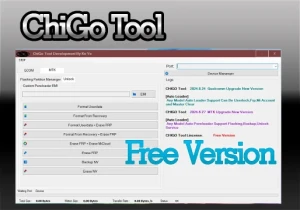
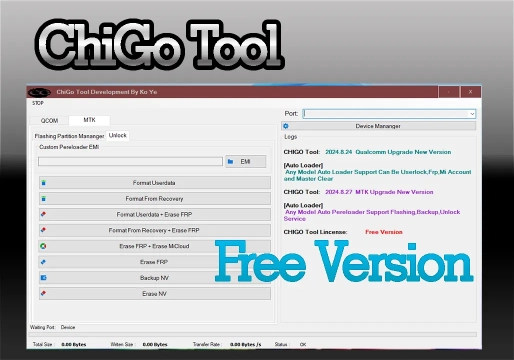
The ChiGo Tool (developed by Ko Ye and also distributed in updated versions as ChiGo Unlocker Tool) is a Windows-based bench utility focused on low-level maintenance of Android smartphones equipped with Qualcomm and MediaTek (MTK) processors. The software centralizes firmware rewriting operations, granular partition management, radio data backup, and lock removal in a single interface, dispensing with the immediate use of dongles or physical boxes for compatible devices.
🛠️ What is ChiGo Tool used for in technical support?
In bench routines, the program acts as a direct intervention tool on the device's internal memory (eMMC/UFS). It is used to solve critical software failures that cannot be resolved by conventional operating system restoration methods, such as:
- Recovery of devices in bootloop or soft brick: Rewriting complete firmwares or specific image files to restore corrupted systems, normally from a Stock ROM.
- Account and screen password unlocking: Removal of Google account lock (FRP), Mi Account (Xiaomi) — known as Mi Account Lock — and user passwords (PIN, pattern, or password) on devices duly authorized by the owner.
- Preservation and repair of network areas: Extraction and restoration of critical partitions (such as NV and EFS/QCN) before risky procedures, avoiding the loss of IMEI and carrier signal.
- Selective partition maintenance: Reading the GPT/partition table to erase or write isolated blocks without interfering with the rest of the system.
⚙️ Main functions and resources
The program divides its operations according to the chipset architecture of the connected device:
Qualcomm Platform (EDL 9008 Mode)
- Autoloader and Universal Unlock: Automatic identification of the programmer (loader) to execute quick functions of Master Clear, UserLock removal, FRP Reset, and Mi Account Reset.
- Flashing with network protection: Firmware writing via Qualcomm HS-USB QDLoader 9008 port, typical of Qualcomm EDL Mode, with the option to shield radio frequency partitions against accidental overwriting.
- Partition Manager: Complete reading of the partition list (Load Partition), allowing individual backup or erasing (Erase) of specific blocks.
- Removal without data loss: Option UserLock/FRP Without Data Loss on supported models, removing the screen lock without formatting personal files from the userdata partition.
MediaTek Platform (BROM/Preloader Mode)
- Autoloader and Custom Preloader EMI: Automatic loading of download agents (DA) and support for manual selection of personalized Preloader EMI files to ensure stable communication with memories from different manufacturers.
- Flashing via Scatter or IMG: Writing complete firmwares from scatter.txt files or direct injection of individual .img images.
- Combined formatting routines: Simultaneous execution of cleaning and unlocking through functions Format Userdata + Erase FRP, Format From Recovery + Erase FRP (related to Recovery Mode) and Erase FRP + Erase MiCloud.
- NVRAM Management: Dedicated functions of Backup NV and Erase NV to safeguard network calibration data and hardware identity.
Note: Later versions of the utility, such as the v3.5 line, also incorporated basic support for SpreadTrum/UNISOC devices and commands in Fastboot mode, expanding the reach to brands like Xiaomi, Samsung, OPPO, Realme, Vivo, Infinix, and Tecno.
Comparison between supported platforms
| Resource | Qualcomm | MediaTek (MTK) |
|---|---|---|
| Connection Mode | EDL 9008 (HS-USB QDLoader 9008) | BROM / Preloader USB Port |
| Communication Agent | Programmer (loader) via Autoloader | Download Agent (DA) + Custom Preloader EMI |
| Firmware Writing | Flash with protection of radio partitions | scatter.txt file or individual .img images |
| Partition Management | Load Partition, individual backup and Erase | Backup NV and Erase NV |
| Unlocks | Master Clear, UserLock, Reset FRP, Reset Mi Account | Format Userdata + Erase FRP, Format From Recovery + Erase FRP, Erase FRP + Erase MiCloud |
| Data Preservation | UserLock/FRP Without Data Loss (supported models) | Backup NV before formatting routines |
| Common Security Barriers | Cryptographically signed loaders (authorized account) | Active SLA/DAA protection |
📋 How to use ChiGo Tool (Standard Procedures)
Before starting any operation, ensure that the USB drivers corresponding to the chipset are properly installed and that Windows driver signing is not blocking the communication port. ADB/Fastboot drivers are part of the recommended set for the workstation.
1. Procedure on Qualcomm devices (EDL)
- Run ChiGo Tool as Administrator on Windows.
- Access the Qualcomm tab.
- Select the brand/model or leave the Autoloader option checked for automatic detection.
- Choose the desired action (e.g., Reset FRP, Reset Mi Account, Load Partition, or select the firmware in the Flash tab).
- Turn off the smartphone completely and put it in EDL mode (9008) — using a modified EDL cable, button combination, or shorting Test Point pins on the motherboard.
- Connect the USB cable to the computer. As soon as the program log recognizes the Qualcomm HS-USB QDLoader 9008 port, the process will start and finish automatically.
2. Procedure on MediaTek devices (BROM/Preloader)
- With the program open as Administrator, select the MediaTek tab.
- If the device requires specific memory authentication, enable Custom Preloader EMI and load the preloader file corresponding to the model; otherwise, keep Autoloader active.
- Click on the intended function (such as Format Userdata + Erase FRP, Backup NV, or load the Scatter file in the writing tab).
- With the device turned off, press and hold the Volume + and Volume − buttons simultaneously and connect the USB cable, placing the chipset in MediaTek BROM Mode.
- Wait for the detection of the MediaTek USB Port or Preloader port in the program manager. Release the buttons as soon as the progress bar starts and wait for the completion message in the log.
💻 Compatibility and system requirements
ChiGo Tool is lightweight software that does not require advanced hardware from the workstation, depending much more on the stability of USB ports and driver integrity.
| Requirement | Recommended Specification |
|---|---|
| Operating System | Windows 7, 8, 10, or 11 (32-bit or 64-bit architectures) |
| Processor | Intel Core i3 or equivalent AMD (or higher) |
| RAM Memory | Minimum 2 GB (4 GB recommended for handling heavy firmwares) |
| Storage | 500 MB free for the software (additional space needed for ROMs and backups) |
| Mandatory Drivers | Qualcomm HS-USB QDLoader 9008, MediaTek VCOM/Preloader USB Drivers, and ADB/Fastboot |
⚠️ Limitations and essential care on the bench
- Security blocks in recent patches: Qualcomm devices with cryptographically signed loaders (such as recent models from Xiaomi, Oppo, and Vivo that require an authorized server account) and MediaTek devices with active SLA/DAA protection in newer Android versions may refuse connection via generic Autoloader.
- Mandatory NV/EFS backup: Never use Erase functions in Partition Manager without first extracting a complete backup of radio partitions (modemst1, modemst2, fsg, nvram, nvdata). The loss of these partitions results in zeroed IMEI or irreversible baseband failure without prior backup.
- Environment and antivirus verification: By performing code injection on serial ports and manipulating packaged executable files, the software often generates false positives in Windows Defender. It is recommended to run it in an isolated bench environment or add the installation folder to exceptions after verifying package integrity.
- Battery level and physical connection: Ensure the device has at least 40% charge before starting firmware writings and use USB ports connected directly to the PC motherboard to avoid voltage drops during flash memory writing.
❓ FAQ – Frequently Asked Questions
What is ChiGo Tool and what is it used for?
ChiGo Tool (developed by Ko Ye and also distributed in updated versions as ChiGo Unlocker Tool) is a Windows-based bench utility focused on low-level maintenance of Android smartphones equipped with Qualcomm and MediaTek (MTK) processors. It centralizes firmware rewriting, granular partition management, radio data backup, and lock removal in a single interface.
Is it possible to remove the screen lock without losing device data?
Yes. On supported models, the UserLock/FRP Without Data Loss option removes the screen lock without formatting personal files from the userdata partition.
Why doesn't Autoloader recognize my device?
Qualcomm devices with cryptographically signed loaders (such as recent models from Xiaomi, Oppo, and Vivo that require an authorized server account) and MediaTek devices with active SLA/DAA protection in newer Android versions may refuse connection via generic Autoloader.
Which partitions should I save before using Erase functions?
Never use Erase functions in Partition Manager without first extracting a complete backup of radio partitions (modemst1, modemst2, fsg, nvram, nvdata). The loss of these partitions results in zeroed IMEI or irreversible baseband failure without prior backup.
Antivirus detected ChiGo Tool as a threat. What to do?
By performing code injection on serial ports and manipulating packaged executable files, the software often generates false positives in Windows Defender. It is recommended to run it in an isolated bench environment or add the installation folder to exceptions after verifying package integrity.
What is the minimum battery level to write firmware?
Ensure the device has at least 40% charge before starting firmware writings and use USB ports connected directly to the PC motherboard to avoid voltage drops during flash memory writing.
Does ChiGo Tool work only on Qualcomm and MediaTek?
No. Later versions of the utility, such as the v3.5 line, also incorporated basic support for SpreadTrum/UNISOC devices and commands in Fastboot mode, expanding the reach to brands like Xiaomi, Samsung, OPPO, Realme, Vivo, Infinix, and Tecno.
⚠️ Warning!
Before using the Program, you need to temporarily disable your Antivirus because it may flag the file as a potential threat, but it is a false positive.
I test every program I share here before posting it, however I cannot guarantee 100% that they are completely safe since I am not the creator of the programs.
I strongly recommend that you create a restore point on your computer before installing any program, so if you notice that the program is not safe, you can simply revert the restore point to the previous state.
Important: if you do not trust it, do not use it and look for other options.
📥 Download Information
- Scroll down to the Download section.
- Check the box I agree to the terms of use
- Then click on Reveal links
- Wait 5 seconds
- Use any of the 2 links
- ⚠️Warning: The download file is compressed with the password “mixdow.com”.
🔐 Site Download Section
To unlock the links, check the box below and click the button:
To get started, make sure you have the basic drivers installed:
DOWNLOAD REQUIRED DRIVERS HEREAttention: Some New FRP Tools use a "bypass" method that requires a special driver filter called LibUSB.
DOWNLOAD LIBUSB HEREFor Unlock Methods that require ADB or Fastboot Mode:
DOWNLOAD ADB AND FASTBOOT DRIVERS HERERequired to put the Qualcomm device into Emergency Download (EDL) mode.:
Download Qualcomm HS-USB QDLoader 9008 DriverI do not endorse or encourage the unlocking of stolen/blocked cell phones.
Anyone who uses these posts for any illegal purpose will be solely responsible for their activity.
Legal Notice:
The content of this Website, including any information about software, downloads, and third-party links, is provided for informational purposes only. The author of this Website is not responsible for any damage, directly or indirectly, caused by the download, installation, or use of any software mentioned on this website.
Disclaimer:
By accessing and using this Website, you agree to hold the author harmless from any liability for:
Hardware or software damage:
Including, but not limited to, viruses, worms, trojans, or other malicious code that may infect your system.
Data loss:
Copyright violations:
Downloading and using software without the proper licenses may result in copyright violations.
Illegal acts:
Misuse of software may be considered an illegal act and result in legal consequences.