
🔌 What is ADB (Android Debug Bridge)?
ADB (Android Debug Bridge) is one of the most important tools for anyone working with Android. Developed by Google as part of the Android SDK Platform Tools, it allows a computer to communicate directly with an Android smartphone or tablet via a USB connection or over the network.
Although it is widely used by app developers, ADB is also an indispensable tool for maintenance technicians, advanced users, and Android content creators. With it, you can execute commands, install applications, access system files, reboot the device into different modes, and perform various diagnostic tasks.
📱 What is ADB?
Android Debug Bridge (ADB) is a command-line utility that creates a communication bridge between a computer and an Android device.
After enabling the USB Debugging option on the device, the computer can send commands directly to the Android system using the ADB protocol. This communication allows you to control virtually every function of the device without having to navigate through the Android screens, making many procedures much faster and more efficient.
Among the best-known commands are:
- Checking whether the device has been recognized by the computer.
- Installing or removing applications.
- Copying files between the computer and the phone.
- Rebooting the device normally or into special modes.
- Capturing system logs.
- Opening a terminal (Shell) on Android.
- Running automated scripts.
⚙️ How does it work?
ADB's operation is based on three main components:
1. Client
This is the program run on the computer by the user through the Command Prompt or Terminal.
Example:
adb devices2. Server
The ADB server starts automatically on the computer and manages all communication between the PC and connected devices. It keeps running in the background as long as commands are being executed.
3. Daemon (adbd)
Inside the smartphone there is a service called adbd, responsible for receiving the commands sent by the computer and executing them.
For security reasons, Android requests authorization when a computer tries to access the device for the first time via USB Debugging.
🛠️ When is it used?
ADB has countless applications, both for ordinary users and for professionals. The most frequent uses include:
Installing applications (APK)
It allows you to install applications directly from the computer.
adb install app.apkCapturing logs
Widely used by developers to identify errors during app development.
adb logcatFile transfer
You can copy files from the computer to the phone or from the phone to the computer using simple commands.
adb push file.txt /sdcard/
adb pull /sdcard/file.txt
Rebooting into special modes
ADB allows you to quickly reboot the device into different modes:
adb reboot
adb reboot bootloader
adb reboot recovery
These commands are widely used during maintenance procedures and bootloader unlocking.
Running Shell commands
It is also possible to access Android's internal terminal:
adb shellThis allows you to run commands directly on the operating system.
Process automation
Many maintenance programs use ADB in the background to automate tasks such as:
- File backups.
- Application installation.
- Collecting device information.
- Automatic reboots.
- System diagnostics.
📊 Table of essential ADB commands
| Command | Function | Category |
|---|---|---|
adb devices |
Lists connected devices | Diagnostics |
adb install app.apk |
Installs an application via APK | Applications |
adb uninstall package |
Removes an installed application | Applications |
adb push source destination |
Sends a file from the PC to the device | Files |
adb pull source destination |
Copies a file from the device to the PC | Files |
adb reboot |
Reboots the device normally | System |
adb reboot bootloader |
Reboots into bootloader mode | System |
adb reboot recovery |
Reboots into recovery mode | System |
adb logcat |
Displays system logs in real time | Diagnostics |
adb shell |
Opens the Android terminal | System |
adb backup |
Creates a backup of the device data | Backup |
adb sideload file.zip |
Installs a package via recovery | Maintenance |
✅ What are the advantages?
ADB offers several advantages for advanced users and technicians. Among the main ones are:
- Direct communication between the computer and the Android device.
- Does not require Root access for most functions.
- Allows automating repetitive procedures.
- Facilitates the development of Android applications.
- Assists in maintenance and device diagnostics.
- Compatible with Windows, Linux, and macOS.
- Part of Google's official tools.
- Large amount of documentation and community support.
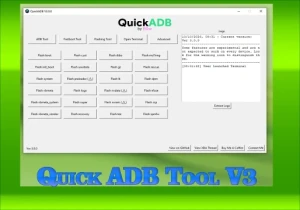
In addition, several well-known software programs use ADB internally to execute procedures automatically.
⚠️ What are the risks?
ADB is an extremely safe tool when used correctly. However, some risks exist:
Improper changes
Executing incorrect commands can delete important files or modify system settings.
Installation of unknown applications
Since ADB allows installing APKs manually, there is a risk of installing malicious applications if the file's source is not trustworthy.
USB Debugging enabled
Keeping USB Debugging permanently enabled can represent a security risk if the device is connected to unknown computers. For this reason, it is recommended to disable it when not in use.
🔍 Conclusion
ADB (Android Debug Bridge) is an essential tool for anyone who wants to better understand how Android works or perform advanced maintenance and development procedures. It offers direct communication between the computer and the device, allowing you to execute commands, install applications, access the system, and automate various tasks.
Although it is widely used by developers, ADB is also indispensable for technicians specialized in Android, especially in procedures such as firmware installation, log collection, bootloader unlocking, and device maintenance. When used with knowledge and caution, it becomes one of the most powerful tools in the Android ecosystem.
❓ Frequently Asked Questions (FAQ)
What does the acronym ADB stand for?
ADB stands for Android Debug Bridge. It is a command-line utility that allows communication between a computer and an Android device.
Do I need Root access to use ADB?
No. The vast majority of ADB commands work without Root access. However, some more advanced commands within adb shell may require superuser privileges.
Does ADB work on any operating system?
Yes. ADB is compatible with Windows, Linux, and macOS. Simply download the Android SDK Platform Tools package available on Google's official website for your operating system.
Is it safe to keep USB Debugging always enabled?
It is not recommended. Keeping USB Debugging permanently enabled can represent a security risk if the device is connected to unknown computers. It is best to enable it only when necessary and disable it shortly after use.
What is the difference between ADB and Fastboot?
ADB works with Android turned on and USB Debugging active, allowing interaction with the operating system. Fastboot works when the device is in bootloader mode and is used for low-level operations such as bootloader unlocking and firmware installation.
How can I check whether ADB has recognized my device?
Simply connect the device via USB, open the terminal or command prompt, and type adb devices. If the device is correctly configured, it will appear in the list with the status device.
Can I use ADB without a USB cable?
Yes. ADB also supports connection over Wi-Fi. To do this, you need to enable wireless connection in the Android developer options or use the command adb tcpip 5555 followed by adb connect DEVICE_IP:5555.