Recovery Mode: The "Lifesaver" for Your Devices
Who has never experienced the scare of seeing their phone or computer stuck on the home screen, refusing to start up properly? It is in these moments of desperation that a true lifesaver of the tech world emerges: Recovery Mode.
Present in most modern operating systems, this feature is the ultimate tool for diagnosing and fixing serious problems that prevent the device from functioning normally.
What is Recovery Mode?
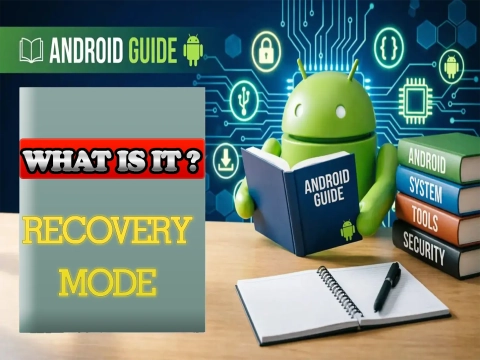
Recovery Mode is an execution environment that is independent of your device's main operating system (whether it be Android, iOS, Windows, or macOS).
Think of it as a "backup operating system" or an emergency room. It is stored in a separate partition of the device's memory, which means that even if your main system is completely corrupted or broken, you will still be able to access Recovery Mode.
How does it work?
Because it runs in isolation, Recovery Mode does not load heavy applications, the standard graphical interface, or user settings. It starts only the most basic hardware commands.
To access it, you generally need to perform a physical button combination during startup. Common examples include:
- Android: Holding the Power button + Volume Down (or Volume Up, depending on the brand) during boot.
- iOS (iPhone): Connecting to a computer and using specific combinations of the side and volume buttons to enter recovery mode via iTunes or Finder.
- Windows: Accessing Advanced Startup Options during PC boot.
Once inside, the user is presented with a simplified menu (sometimes text-only) that provides direct access to the system files and deep repair tools.
When should Recovery Mode be used?
Recovery Mode is not something to use on a daily basis, but rather in specific scenarios of critical failure. The main reasons to use it are:
- Bootloops: When the device keeps restarting infinitely and never reaches the home screen.
- Stuck updates: If the system failed in the middle of an update and the device became "corrupted."
- Forgotten passwords: When the user loses access and needs to format the device from scratch to regain use.
- Deep cleaning: To erase the system cache or reset the device to factory defaults (Factory Reset) when the normal settings won't open.
- System installation (Modding): Advanced users use customized versions of Recovery (such as TWRP on Android) to install new operating systems (custom ROMs).
Comparison Table: Normal System vs. Recovery Mode
| Feature | Normal Operating System | Recovery Mode |
|---|---|---|
| Graphical Interface | Complete, visual, and interactive | Text menu or minimal interface |
| User Applications | All loaded and active | No applications loaded |
| Data Access | Restricted to system permissions | Deep access for formatting and repair |
| Hardware Dependency | Requires an intact system partition | Runs on an isolated and independent partition |
What are the advantages?
- "Do-it-yourself" recovery: It saves you from having to take the device to a repair shop due to simple software failures.
- Independence from the main system: It works even if the phone or computer is "dead" from a software standpoint.
- Fixing serious bugs: It allows you to clear old cache data that often leaves the device slow or freezing after major updates.
- Safety: It is a safeguard that ensures that, if everything else fails, you still have a chance to restore your hardware.
What are the risks and precautions?
Although it is a rescue tool, Recovery Mode deals with the deepest structures of the device, bringing some risks if used incorrectly:
⚠️ Important Warning: Most definitive actions in Recovery Mode do not display repetitive "Are you sure?" warnings. A wrong click can be irreversible.
- Total data loss: The Factory Reset or Wipe Data option will erase absolutely everything (photos, contacts, messages) that is not saved in the cloud.
- Bricking the device: If you are using recovery mode to install a custom system or a sideloaded update and the process fails (or the battery dies), the device may become a useless "brick."
- Security Lock (FRP): On Android and iOS devices, resetting via Recovery Mode without first unlinking the Google account or iCloud will cause the device to require the previous owner's password at startup as an anti-theft measure. If you don't know the password, you will be locked out forever.
Frequently Asked Questions (FAQ)
1. Does Recovery Mode automatically erase my data?
No. Simply entering Recovery Mode does not erase your data. Data loss only occurs if you manually select the formatting option (Wipe Data / Factory Reset) within the recovery menu.
2. Can I use Recovery Mode to recover deleted photos or files?
No. Recovery Mode is strictly focused on operating system repair, cache cleaning, and formatting. It does not have native tools for recovering deleted files. For that, specific data recovery software connected via computer is required.
3. What is the difference between Recovery Mode and Safe Mode?
Safe Mode loads the main operating system but disables third-party applications and non-essential drivers to help identify software conflicts. Recovery Mode is a completely separate and isolated environment, used when the main system cannot even start.
4. If the battery dies while I'm in Recovery Mode, will the device be damaged?
If you are just browsing the text menu, there is no problem. However, if you are in the middle of a format (Wipe) or installing a custom ROM and the battery dies, the system may be corrupted, resulting in a "bricked" (unusable) device.
```